How to Give Someone Manager Access to Your Google Business Profile
Add an agency or colleague as a manager on your Google Business Profile in seven steps, with screenshots. See which role to pick and what it lets them do.

To give someone manager access to your Google Business Profile, search your business name on Google while signed in as an owner, open the three-dot menu, and choose Business Profile settings, then People and access. Click Add, enter their email address, select the Manager role, and click Invite.
The whole thing takes about two minutes. The part worth getting right is which role you hand over, and what you type into that field, because an agency and an individual are added two different ways.
What Does Manager Access Actually Allow?
A manager can run your profile day to day but cannot give it away. That is the entire point of the role, and it is why it is the right level of access for almost anyone who works on your profile but does not own your business.
| Manager | Owner | |
|---|---|---|
| Edit name, hours, address, services | Yes | Yes |
| Upload photos and create posts | Yes | Yes |
| Reply to reviews | Yes | Yes |
| See performance data | Yes | Yes |
| Add or remove other people | No | Yes |
| Transfer ownership | No | Yes |
| Delete the profile | No | Yes |
Every profile also has one primary owner. That person cannot be removed from the profile until they transfer the primary owner role to somebody else, which is a deliberate safeguard against a business losing control of its own listing. Google documents the full permission set in Add and remove profile owners and managers.
Should You Give an Agency Owner or Manager Access?
Manager, essentially always.
Manager access covers everything a marketing agency, a virtual assistant, or a staff member needs in order to do the work: editing your information, posting, replying to reviews, and reading your performance data. Owner access adds exactly three powers on top, and all three are ways to lose your listing rather than improve it.
If a vendor asks for Owner access, ask them which specific task needs it. There are legitimate answers, such as migrating a profile between accounts. “It is easier” is not one of them. You can always upgrade someone later, and upgrading takes ten seconds.
The practical risk is not that an agency behaves maliciously. It is that you part ways two years from now, and the person who can remove users has no commercial reason to reply to your email.
Do You Enter an Email Address or an ID?
This is where most people get stuck, because Google labels the field Email address and then happily accepts something that is not an email address.
Adding a person: type the Google account email address they actually use. It has to be a Google account. A work address like [email protected] works fine if that address is signed up for a Google account, but a plain mailbox that has never been registered with Google will not resolve.
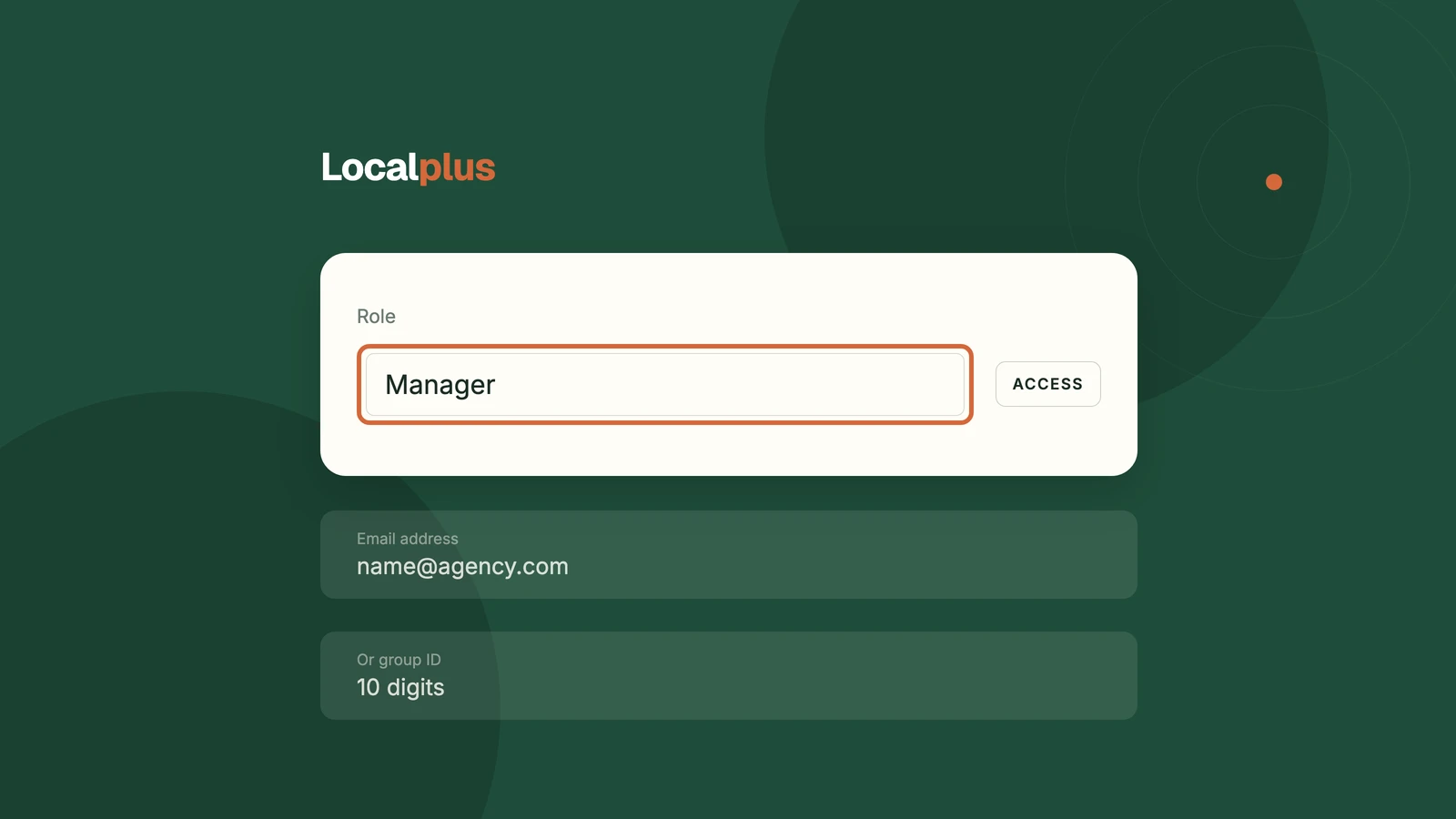
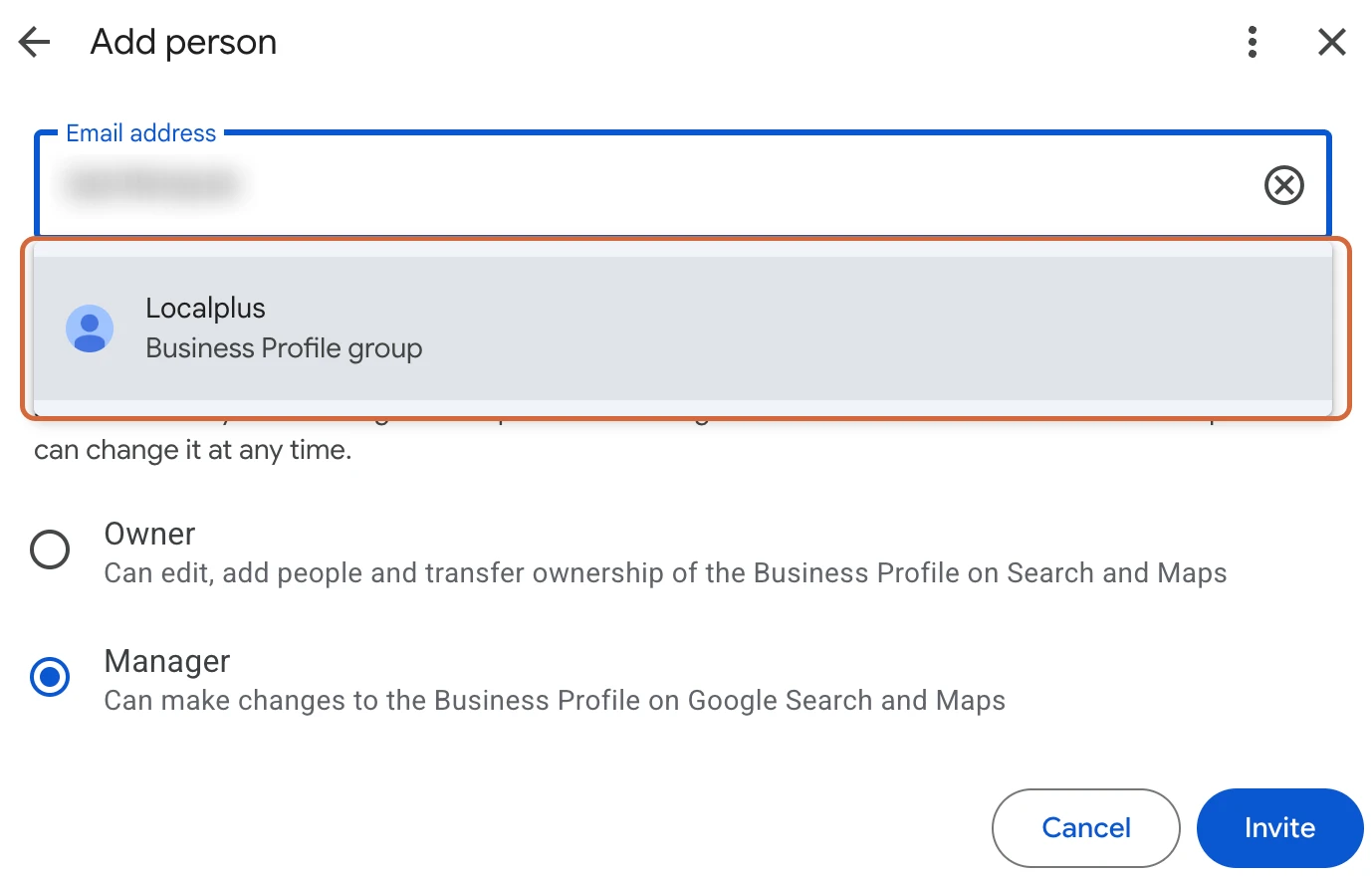
Adding an agency: most agencies do not want you adding one employee’s personal login. Instead they run a Business Profile group, which Google identifies with a ten-digit ID number. You paste that number into the same Email address field, and Google replaces it with the group’s name in a dropdown below.
That is what you are looking at in step 7 further down: a number typed into a field marked Email address, resolving to a named organisation.
Before you click Invite, read the name Google shows you. It is the only confirmation you get that the ID belongs to the agency you think it does, and a mistyped digit can resolve to a completely different company.
Agencies work this way because access then survives staff changes. Your account manager leaves, the group keeps the access, and nobody has to bother you to redo this.
How to Give Manager Access Step by Step
Step 1: Check Which Google Account You Are Signed In To
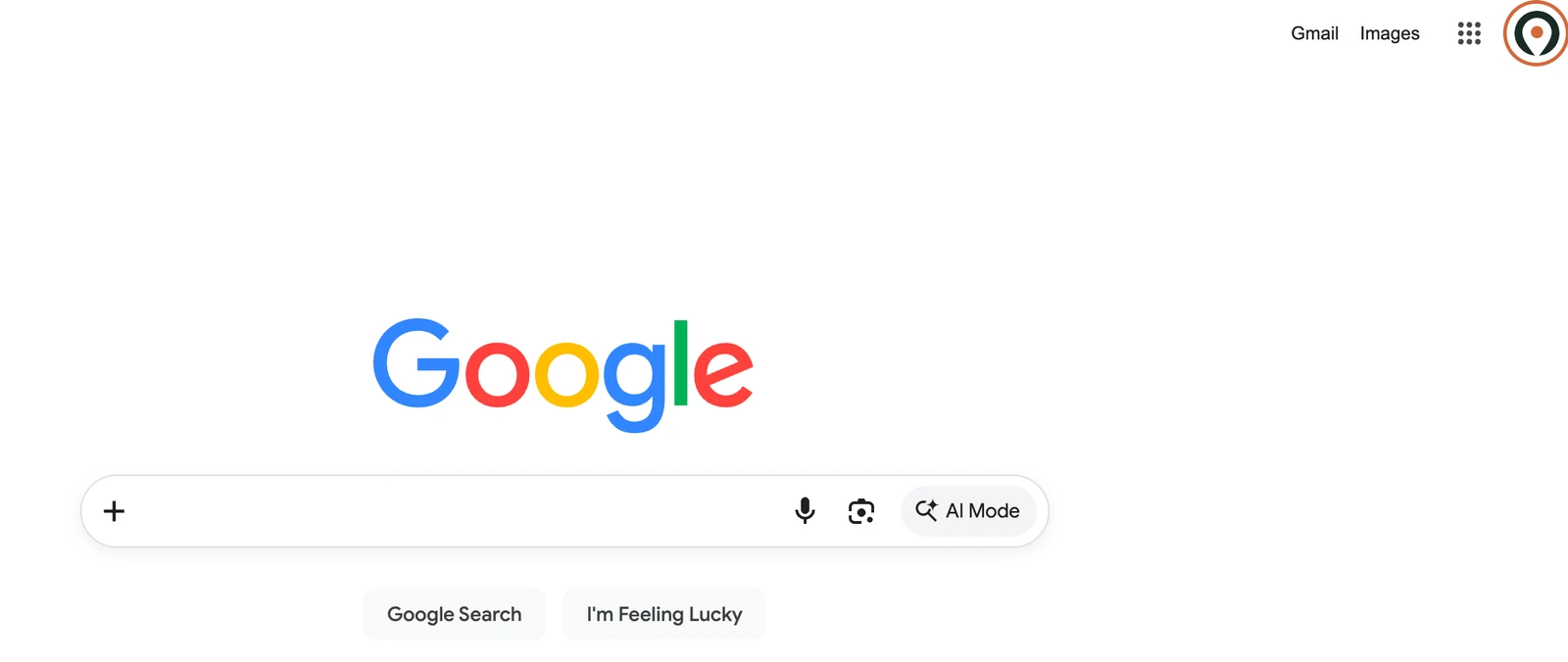
Go to google.com and look at the avatar in the top right corner. It has to be the account that owns the Business Profile, which is frequently not the account someone uses day to day.
If you have several Google accounts, this single check prevents the most common failure in this whole process.
Step 2: Search for Your Business Profile
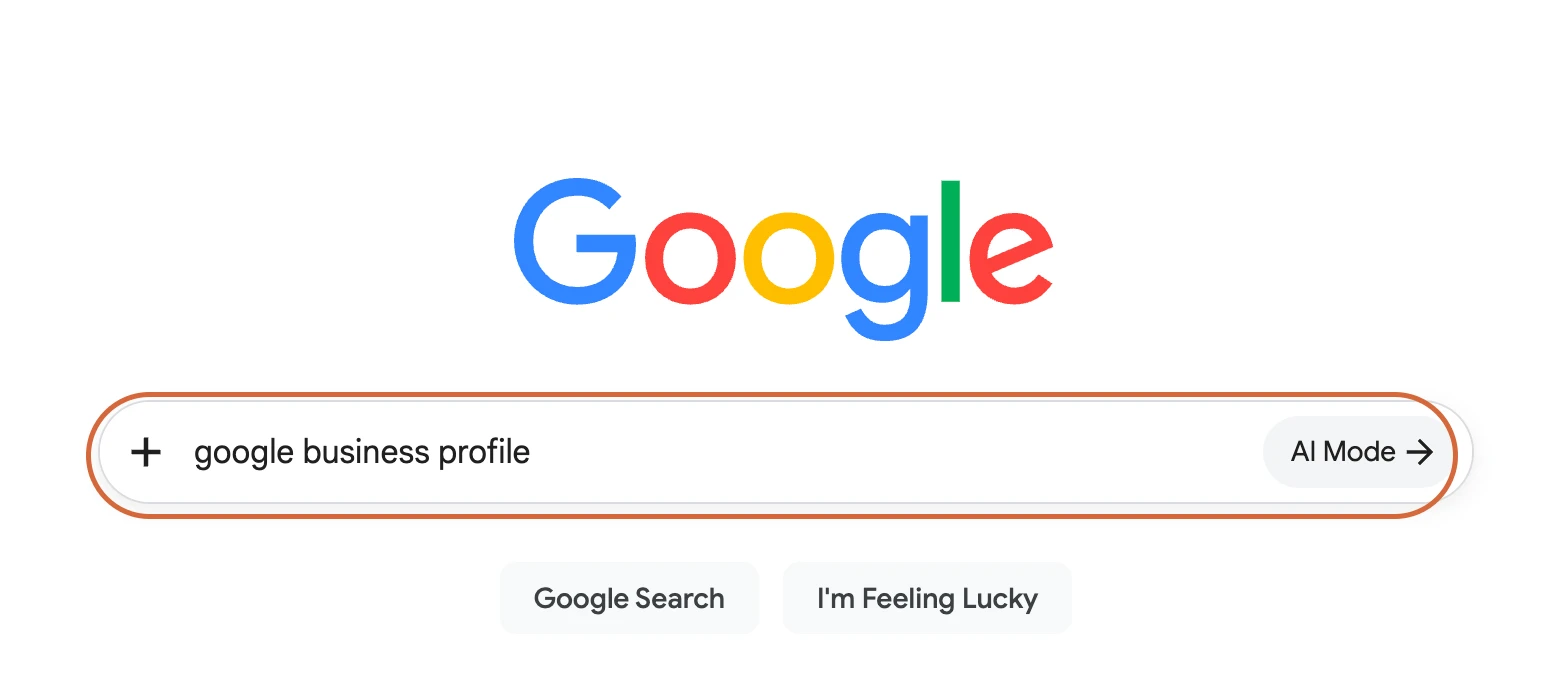
Search either google business profile or your own business name. Both routes land you in the same place when you are signed in as an owner or manager.
Step 3: Confirm You See “Your Business on Google”
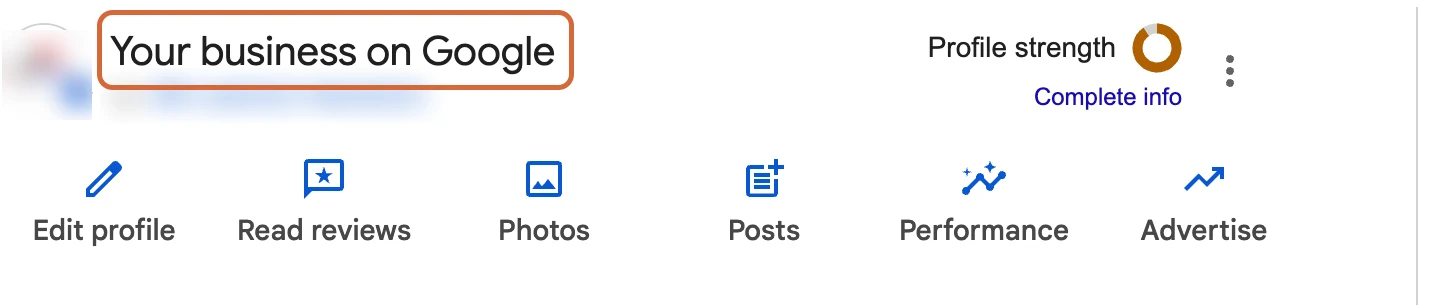
This panel is your proof that you are in the right account. If you see it, continue. If you do not, you are signed in to the wrong Google account, so switch accounts and search again.
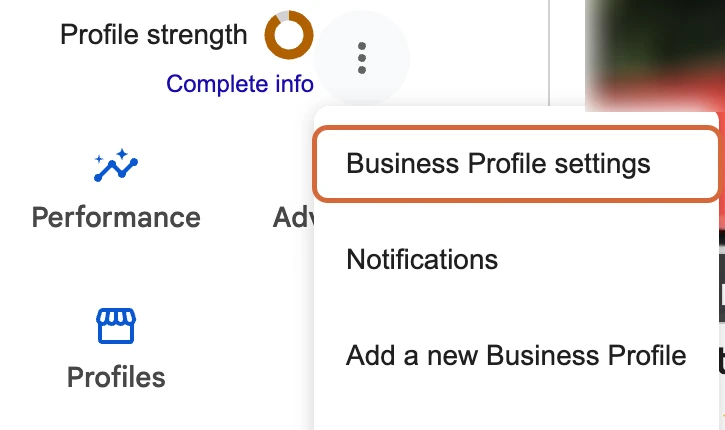
Step 4: Open the Three-Dot Menu and Choose Business Profile Settings
The three dots sit on the right of that panel, next to Profile strength.
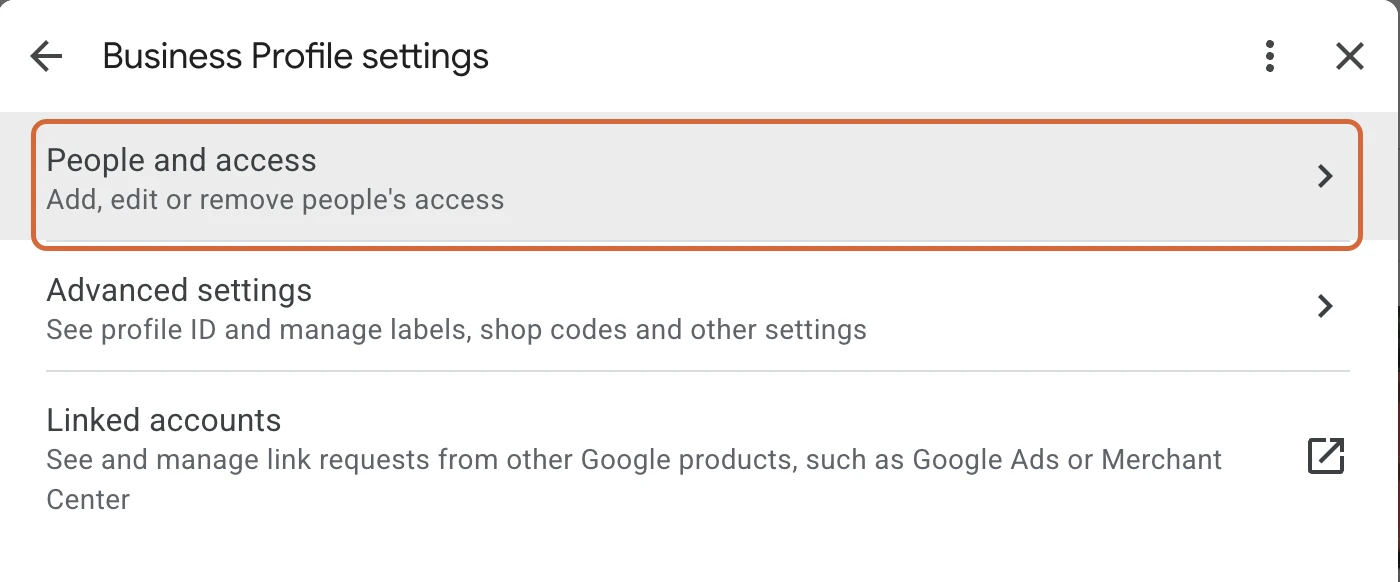
Step 5: Choose People and Access
If this row is missing, you are signed in as a manager rather than an owner. Only owners can add people.
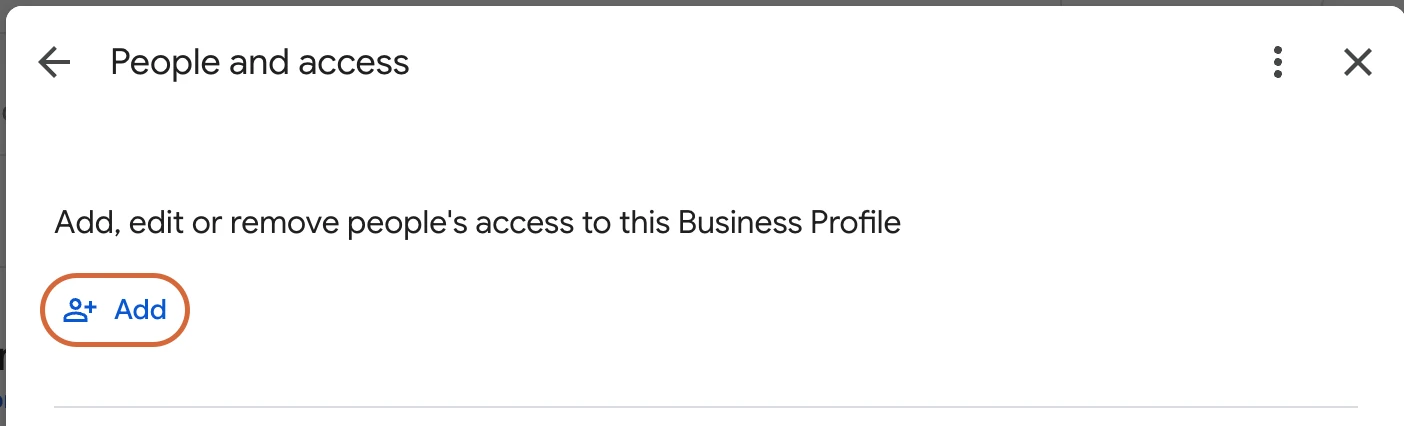
Step 6: Click Add
You will see everyone who currently has access listed here. It is worth reading that list even if you came for something else, because old agencies and former employees tend to still be on it.
Step 7: Enter the Email or ID, Choose Manager, and Invite
Type the person’s Google account email, or the agency’s ten-digit group ID. Wait for Google to resolve it and check the name that appears. Select Manager, then click Invite.
What Happens After You Send the Invite?
Nothing changes on your profile until the other side accepts.
Google emails the address or group you invited, and the person shows in your People and access list as pending until they click through. If they never accept, nothing happens and no access is granted. You can cancel a pending invitation from the same screen.
Once accepted, they appear as a Manager and can start work immediately. You will not get a second confirmation, so if you are waiting on an agency it is worth asking them to tell you when they have accepted.
How Do You Remove Manager Access Later?
The same path, in reverse: three-dot menu, Business Profile settings, People and access. Click the person you want to remove, then Remove.
Removal is immediate and does not require their agreement. This is the reason the Owner versus Manager decision matters: a manager can be removed by you at any time, and an owner cannot be removed by anyone except themselves or the primary owner.
Do this the same day a relationship ends rather than eventually. An old manager keeps full editing rights over your hours, your phone number and your replies to reviews until somebody actively takes them away.
Why Won’t Google Let Me Add Someone?
Four causes account for nearly all of it:
- You do not see “Your business on Google”. Wrong Google account. Switch accounts and search again.
- You do not see People and access. You are a manager, not an owner. Ask an owner to add the person, or ask them to make you an owner first.
- The email will not resolve. The address is not registered as a Google account. Ask for the address they actually sign in to Google with.
- The profile is not verified, or is suspended. Access controls are limited until the profile is in good standing. If yours has been suspended, start with our guide on what to do when your Google Business Profile is suspended.
One more that catches people out: if your business has several locations, each profile carries its own access list. Adding someone to one location does not add them to the others, and there is no “apply to all” on this screen unless your locations are already inside a Business Profile group.
Getting the Rest of the Profile Right
Access is plumbing. It only matters because of what gets done once somebody has it.
If you are handing over access so that work can start, the two things that move local rankings fastest are your categories and the completeness of the profile itself. Our guides on how to change your Google Business Profile categories and the Google Business Profile optimization checklist cover both, and neither needs an agency to action.
If you would rather hand the whole thing over, that is what our Google Business Profile management service does.
Not sure what state your profile is in? Run a free local business audit and we will show you what Google currently sees.
Isaac founded Localplus to help local businesses in the US, UK & Canada get found in AI searches like ChatGPT, Gemini and Copilot. He's been working in the SEO space for over 15 years.


