Guide
How to Change Google Business Profile Categories
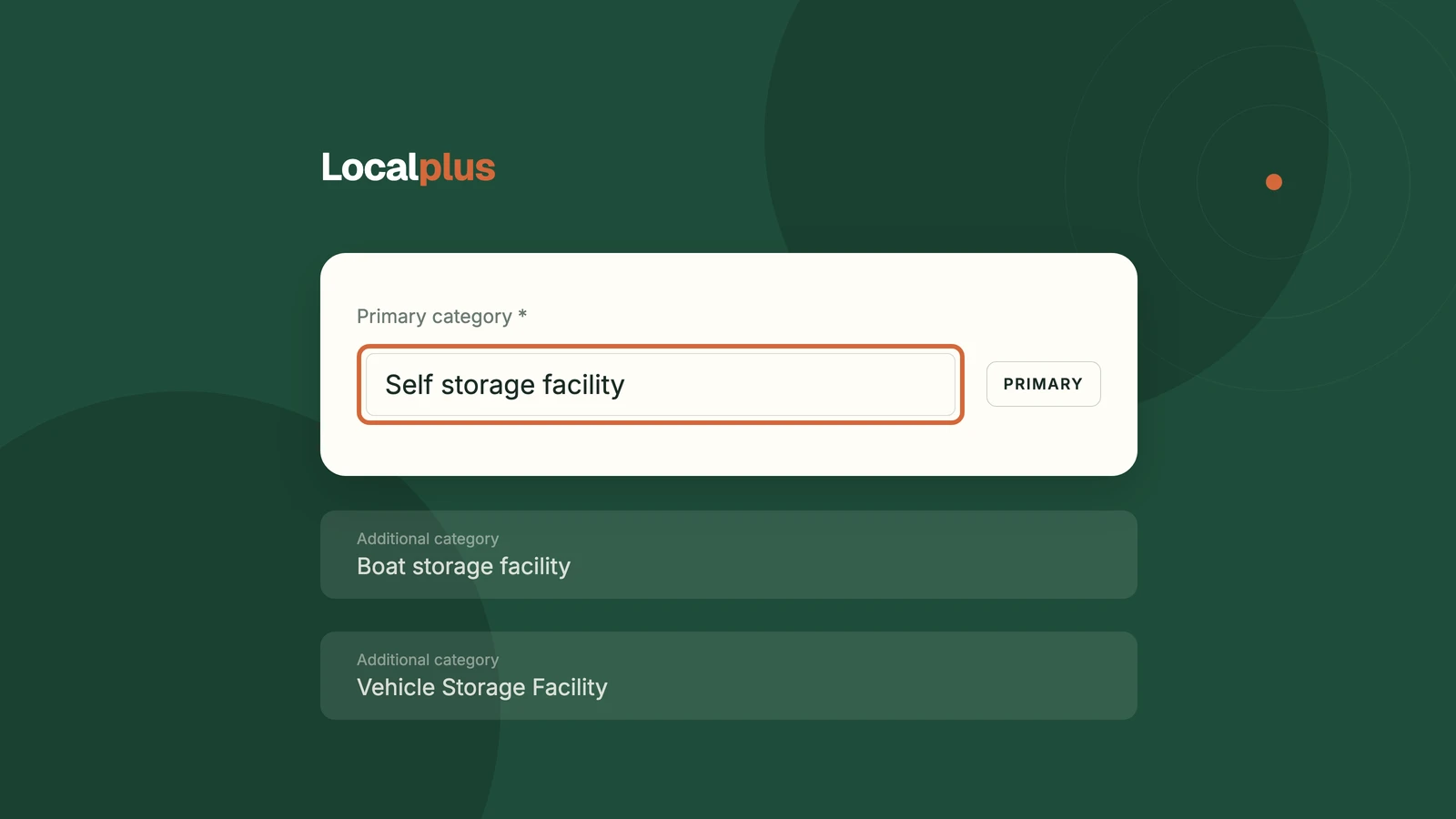
Change your Google Business Profile categories in five quick steps. Learn which primary category to pick and when extras help you win more local searches.

To change your Google Business Profile categories, sign in to the Google account that manages your profile, search your business name on Google, click Edit profile, open the About tab, then select Business category. Set one primary category, add up to nine additional ones, and save.
The whole edit takes about two minutes. Picking the right categories is the part that pays, so this guide covers both: what categories actually do, and the exact clicks to change them.
What Are Google Business Profile Categories?
Google Business Profile categories are the labels that tell Google what your business does, like “Plumber”, “Dental clinic”, or “Self storage facility”. Google uses them to decide which searches you can show up for, on Google Search, on Google Maps, and in AI answers.
Every profile gets one primary category and up to nine additional categories, ten in total, per Google’s category guidelines. You cannot invent your own. You pick from Google’s fixed list of roughly 4,000 categories, choosing the closest match as you type. If no category describes a service exactly, pick the nearest one and list the specific service under the Services section of your profile instead.
| Primary category | Additional categories | |
|---|---|---|
| How many | 1 | Up to 9 |
| Ranking weight | The strongest single signal | Supporting |
| Use it for | The service that pays your bills | Real secondary services |
Why Do Your Categories Matter?
Your primary category is the single strongest lever you control in local rankings. Whitespark’s 2026 Local Search Ranking Factors survey rates the primary category as the number one individual ranking factor for the map pack, the block of three map results Google shows for local searches. It outranks proximity and even keywords in your business name.
The logic is simple. A deck builder listed as “Contractor” is competing against every roofer, framer, and handyman in town, and losing to businesses labeled “Deck builder” every time someone searches for one.
Categories do two more things owners rarely hear about:
- They unlock profile features. Booking buttons, menus, service lists, and many attributes only appear for certain categories.
- They feed AI answers. When customers ask ChatGPT, Gemini, or Copilot for a local recommendation, those tools lean on the same business data. A wrong category hides you there too.
Categories are one piece of a bigger local SEO picture, but they are the fastest piece to fix. Across the profiles we manage at Localplus, a corrected primary category is often the first visible win, with movement showing up inside a couple of weeks.
How to Change Google Business Profile Categories Step by Step
Google retired the separate Business Profile Manager dashboard, so you now edit your profile straight from Google Search. Here is the full path.
Step 1: Go to Google and Check Your Account
Open google.com and look at the profile picture in the top right corner. That avatar shows which Google account you are signed in to, and it must be the account that manages your Business Profile.
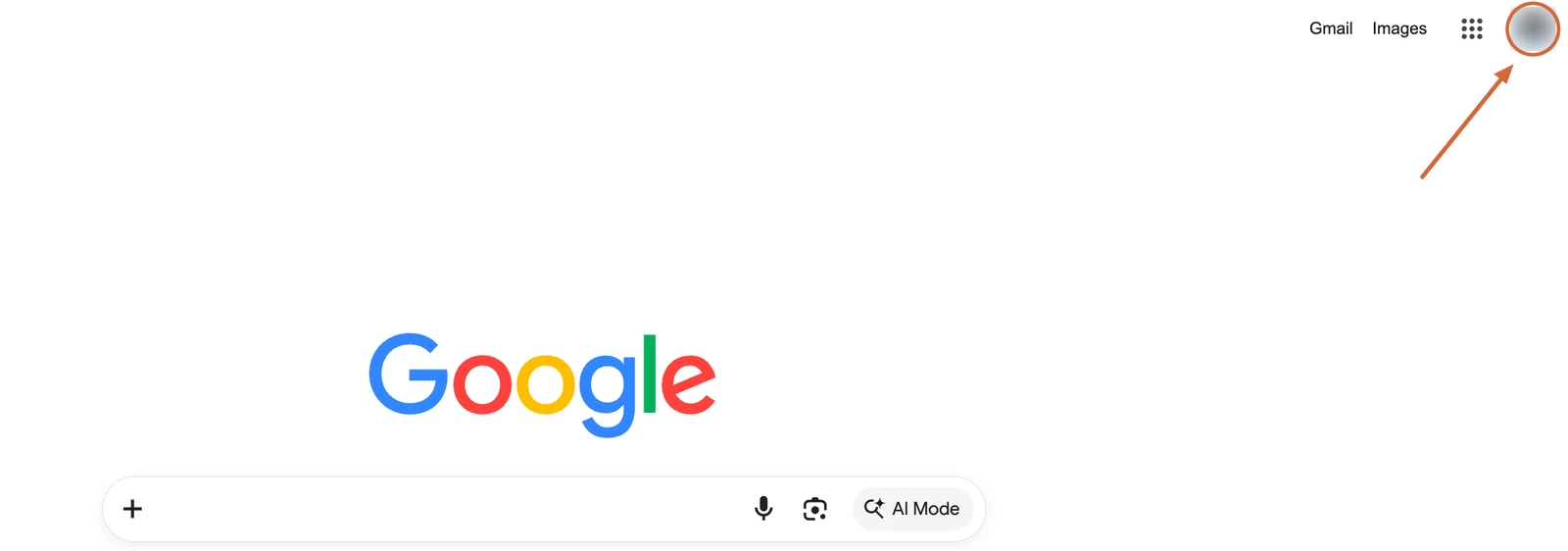
If it is the wrong account, click the avatar and switch. Most “I can’t edit my profile” moments are really just this.
Step 2: Search for Your Business Name
Type your business name into the search bar. If you are signed in to the right account, a panel called “Your business on Google” appears at the top of the results with shortcuts like Edit profile, Read reviews, and Performance.
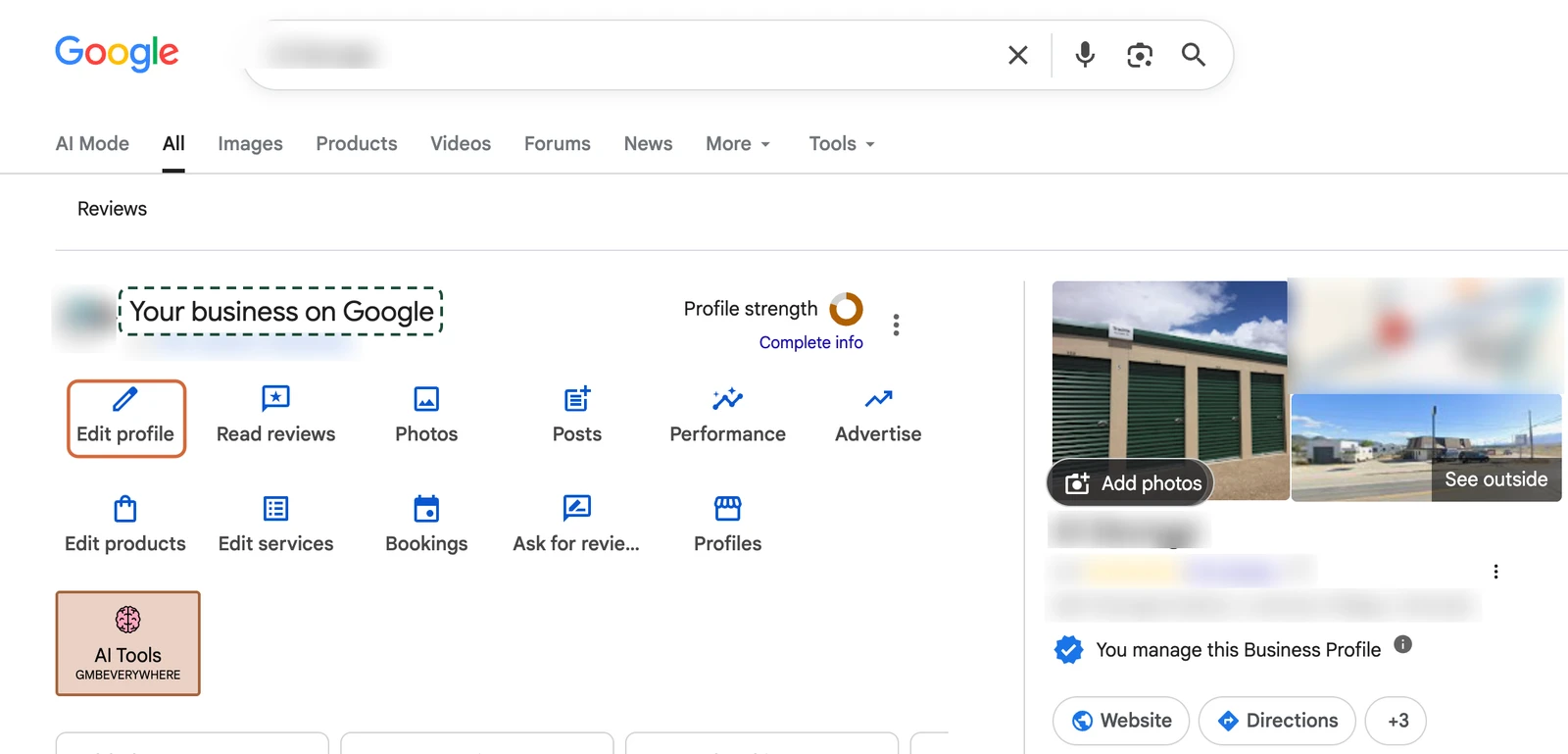
Step 3: Click Edit Profile
Press Edit profile. A window called Business information opens, starting on the About tab. This is where your name, categories, and description live.
Step 4: Open Business Category
On the About tab, click anywhere in the Business category section. You will see your current setup: the primary category marked with a PRIMARY chip, and any additional categories listed under it.
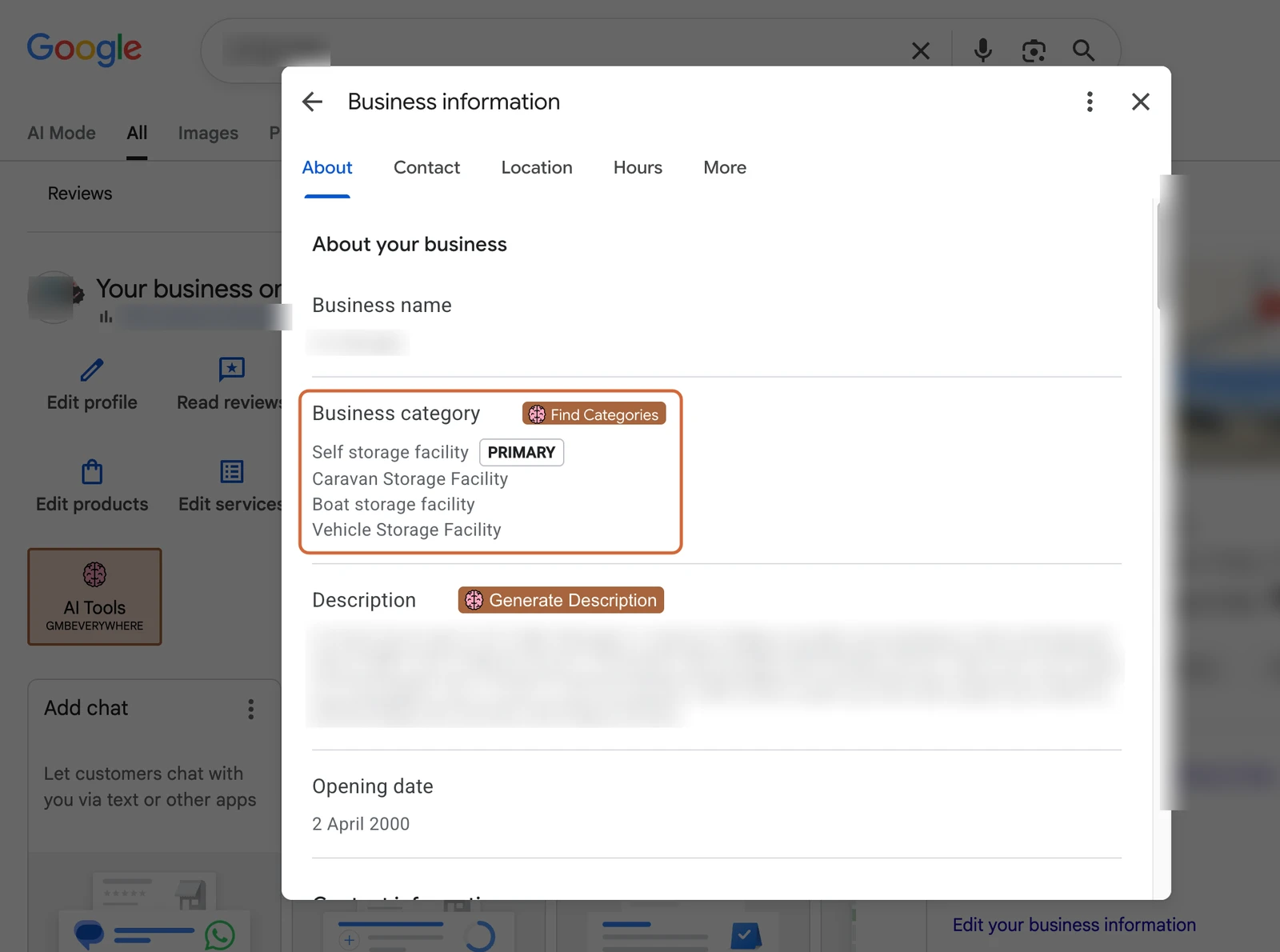
Step 5: Set Your Categories and Save
The editor shows your primary category on top and each additional category below it. Start typing in any field and pick the closest match from Google’s suggestions. The X removes a category, and “Add another category” gives you a new slot, up to nine additional.
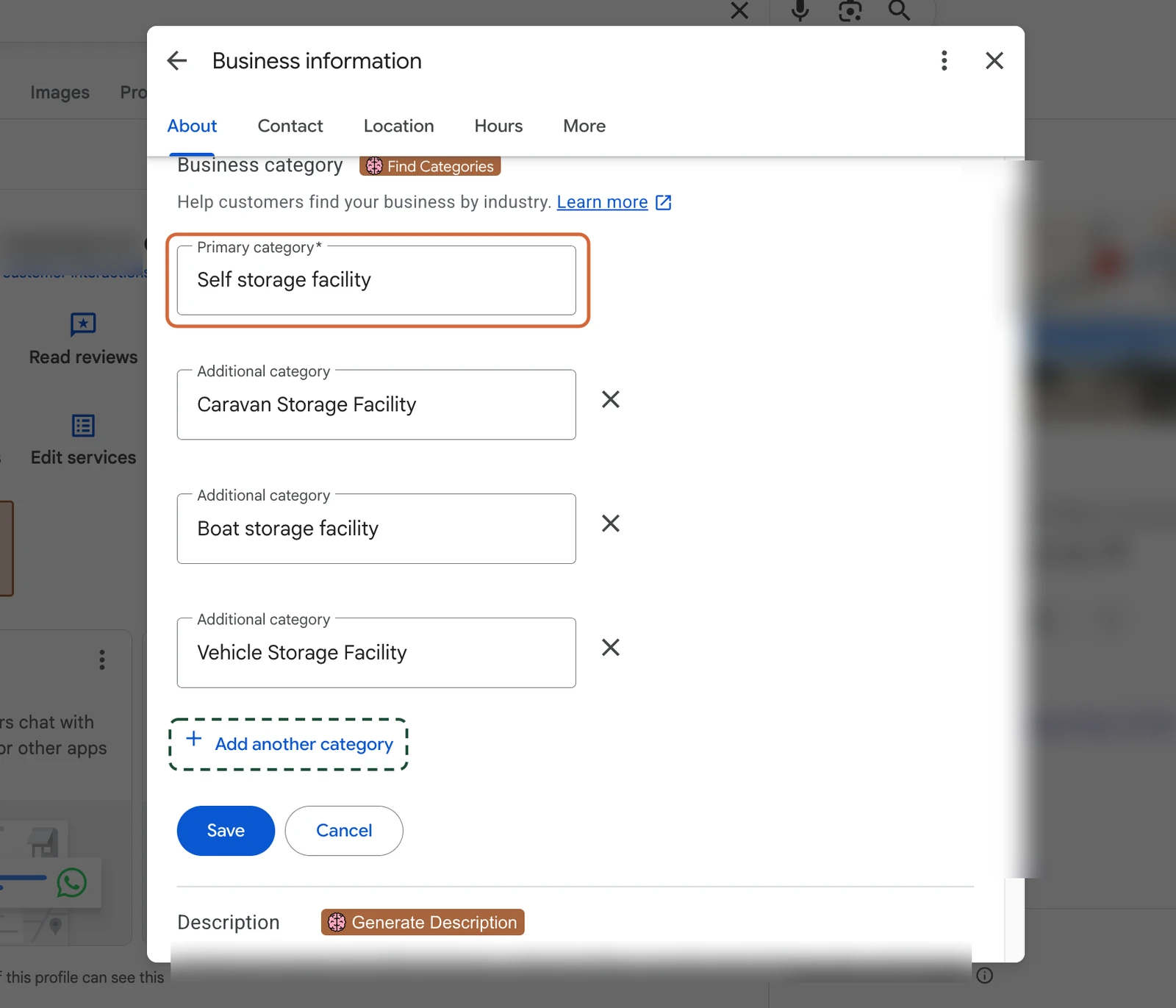
Hit Save and you are done. You can make the same edits on your phone through the Google Maps app under your business profile.
How to Choose the Right Primary Category
Pick the most specific category that matches the service that makes you the most money. Specific beats general every time: “Emergency plumber” over “Plumber” if that is your bread and butter, “Self storage facility” over “Storage”.
When Should You Add Additional Categories?
Add an additional category for every real service line that customers search for separately. The storage facility in the screenshots above is a good example: “Self storage facility” is the primary, with “Caravan Storage Facility”, “Boat storage facility”, and “Vehicle Storage Facility” as additions, because people search for those three on their own. We see the same pattern across the self storage businesses we work with.
You do not need to fill all nine slots. Every category you add slightly widens what Google thinks you are, so a tight, honest set beats a stuffed one.
What Happens After You Save?
Most category changes go live within minutes. Google holds some edits for review, which can take days and occasionally longer, so do not panic if your change sits in a pending state.
Ranking movement follows later. Give it a week or two, then open the Performance tab in that same “Your business on Google” panel and watch calls, direction requests, and website clicks against the previous period.
Rather have someone obsess over this for you? Our Google Business Profile management service handles categories, posts, photos, and reviews week in, week out, so the profile keeps earning while you run the business.
Isaac founded Localplus to help local businesses in the US, UK & Canada get found in AI searches like ChatGPT, Gemini and Copilot. He's been working in the SEO space for over 15 years.